Contents
- Overview
- First session
- System requirements
- Installation
- Demo mode and activation
- Interface overview
- Controls reference
- Signal flow
- Contour and Drive explained
- Sidechain
- Factory presets
- Tips
- Troubleshooting
- Credits and third-party notices
Overview
RD-01 Studio Compressor is a feed-forward compressor for mono and stereo tracks, buses and mixes. Alongside the usual compressor controls it has Contour, a single control that changes timing, knee and detector response together, an internal or external sidechain, and a character section with 4× oversampled Drive, Warmth and Air.
In outline, the signal passes through Input trim, the compressor and Makeup, then Drive, Warmth and Air, then Mix (a parallel blend with the trimmed dry signal), Output and an optional Safety Clip. The detector listens either to the track itself or to an external key routed by the host, through its own high-pass filter and gain. Signal flow describes the full order.
RD-01 has a fixed latency of 32 samples, reported to the host, with or without Drive. There is no lookahead and no automatic makeup gain. The output is not clipped or limited unless you switch on the Safety Clip.
RD-01 is part of Revesby Dynamics, with RD-02 Transient Shaper.
First session
- Click the Presets icon and double-click Init in the Utility folder. It loads and the screen opens the Dynamics page.
- Play suitable material through RD-01, such as a vocal, a bass or a drum bus.
- Lower Threshold until the gain-reduction readout on the Dynamics page, or the gain-reduction bar on the Meter page, shows a few dB of reduction, then set Ratio for the strength of compression.
- Shape the timing with Attack and Release, then turn Contour left for tighter control or right for a smoother response.
- Raise Makeup to restore the level lost to compression, then fine-tune with OUTPUT while you switch the power button between processing and bypass, so you compare at matched loudness.
Controls reference describes every control in detail.
System requirements
| Windows | Windows 10 or 11, 64-bit. VST3. |
| macOS | macOS 12 or later. VST3 and AU. Universal: runs natively on Apple Silicon and Intel Macs. |
| Host | A 64-bit host application that loads VST3 or AU plugins. External sidechain needs a host that can route audio to a plugin's sidechain input. |
| Channels | Mono in to mono out, or stereo in to stereo out. Optional mono or stereo sidechain input. Surround layouts are not supported. |
| Sample rates | 44.1 kHz to 192 kHz. |
| Latency | 32 samples, fixed and reported to the host. |
AAX (Pro Tools) and CLAP versions are not available.
Installation
One installer per platform installs Revesby Dynamics. You can choose RD-01 Studio Compressor, RD-02 Transient Shaper or both. The demo and the licensed version are the same installation: a licence file unlocks it (see Demo mode and activation).
The installers never add, change or remove licence files or user presets.
Windows
- Close your audio applications. If RD-01 is loaded in a host, setup stops before changing anything and asks you to close it.
- Run the Revesby Dynamics installer and follow the steps. It needs administrator rights.
- Choose the plugins to install.
The installer places:
| Item | Location |
|---|---|
| RD-01 VST3 plugin | C:\Program Files\Common Files\VST3\RD-01 Studio Compressor.vst3 |
| Licence agreement and third-party notices | C:\Program Files\Revesby Audio\Revesby Dynamics |
| Uninstaller | The same folder, and an entry in Windows' list of installed apps |
Installing again replaces each plugin bundle whole, so nothing from an earlier installation is left inside it.
macOS
- Open the Revesby Dynamics disk image (.dmg) and run the installer package inside it. The licence agreement and third-party notices are in the disk image beside the installer.
- Follow the steps, accept the licence agreement and choose the plugins to install.
The installer places:
| Item | Location |
|---|---|
| RD-01 VST3 plugin | /Library/Audio/Plug-Ins/VST3/RD-01 Studio Compressor.vst3 |
| RD-01 Audio Unit | /Library/Audio/Plug-Ins/Components/RD-01 Studio Compressor.component |
The installer refreshes the Audio Unit cache.
After installing: rescan in your host
Most hosts scan for new plugins when they start. If RD-01 does not appear, use your host's plugin manager to rescan, then restart the host. On Windows, make sure the host scans C:\Program Files\Common Files\VST3.
If you want to use an external sidechain with an instance that was in a session before the installation, save the session, restart or rescan the host, and insert a fresh instance so the host sees the sidechain input.
Uninstalling
Windows: use the uninstaller in C:\Program Files\Revesby Audio\Revesby Dynamics, or remove Revesby Dynamics from the list of installed apps in Windows Settings. Close your audio applications first; a plugin that is in use cannot be removed.
macOS: quit your audio applications and delete these items:
/Library/Audio/Plug-Ins/VST3/RD-01 Studio Compressor.vst3/Library/Audio/Plug-Ins/Components/RD-01 Studio Compressor.component
Uninstalling leaves your licence file and user presets in place. To remove them as well, delete them from the folders listed below.
| Windows | macOS | |
|---|---|---|
| Licences | %APPDATA%\Revesby\Licences | ~/Library/Revesby/Licences |
| User presets | %APPDATA%\Revesby Audio\RD-01\Presets | ~/Library/Revesby Audio/RD-01/Presets |
| Settings (remembered window size) | %APPDATA%\Revesby Audio\RD-01 | ~/Library/Application Support/Revesby Audio/RD-01 |
The licence folders are shared with RD-02. Keep a copy of your licence file before deleting it.
Demo mode and activation
Demo mode
Without a licence, RD-01 runs in demo mode. Every control and feature works, with no time limit. Every 45 seconds of processed audio, the output drops to silence for 2 seconds, with short fades at each edge. The dropouts also occur in offline bounces and exports. They do not occur while the plugin is bypassed.
A DEMO badge appears at the top right of the screen on every page. Click it to open the About page, which shows:
- BUY: opens the RD-01 page on revesbyaudio.com in your browser.
- IMPORT: imports a licence file.
Licensing changes no settings. Sessions and presets made in demo mode open unchanged once the plugin is licensed.
Importing your licence
Your purchase comes with a licence file, ending .license, attached to your order email. To activate:
- open the About page (the About icon at the bottom right of the screen, or click the DEMO badge), click IMPORT and choose the file; or
- drag the file from your desktop or email client and drop it anywhere on the RD-01 window.
RD-01 checks the file on your computer. There is no activation server and no internet connection is needed. A valid file is copied to your licence folder, and About shows the result. On success it reads "Thank you! The licence is saved for every DAW on this computer."
The licence then applies to every open instance of every plugin it covers, in every host on that computer. In another host that is already running, an open RD-01 window picks it up within a few seconds. The DEMO badge disappears and About shows "Licensed to" followed by your name (or your email address if the licence carries no name).
IMPORT stays available on About after activation, so you can replace a licence, for example with a Dynamics Bundle licence.
Dynamics Bundle
A Dynamics Bundle licence is one file that covers both RD-01 Studio Compressor and RD-02 Transient Shaper. Importing it in either plugin unlocks both. About shows "Dynamics Bundle" under the licence holder's name.
Where licences are kept
| Windows | macOS | |
|---|---|---|
| Per user (IMPORT saves here) | %APPDATA%\Revesby\Licences | ~/Library/Revesby/Licences |
| Whole computer (read only, for administrators) | C:\ProgramData\Revesby\Licences | /Library/Revesby/Licences |
Every host and plugin format reads both folders. You can also copy the licence file into one of these folders yourself; files ending .license or .licence are recognised.
Your licence terms in brief
A personal licence lets you install and use RD-01 on up to three computers that you own or use, as long as you are the only person using it. Copy the licence file to each computer and import it there. The licence is non-transferable, and the licence file carries your name: keep it to yourself, and keep a copy somewhere safe. If you lose it, contact support and it will be resent.
This is a summary only. The End User Licence Agreement, shown during installation and published at revesbyaudio.com/eula, sets out the terms.
The daily licence check
Once licensed, RD-01 asks revesbyaudio.com about once a day whether the order behind your licence has been refunded or charged back. The request sends only your licence ID (and, as with any web request, your computer's IP address). It starts about 20 seconds after the plugin loads, so a host's quick plugin scan doesn't normally trigger it.
- If your computer is offline, a firewall blocks the request, or the website does not answer, nothing changes. RD-01 keeps working and asks again later.
- Only a refunded, disputed or charged-back order returns the plugin to demo mode. If the dispute is withdrawn or decided in Revesby Audio's favour, the licence works again.
- If no Revesby Dynamics licence is installed on the computer, and none has been revoked there, no request is made.
RD-01 collects and sends no other information.
Interface overview
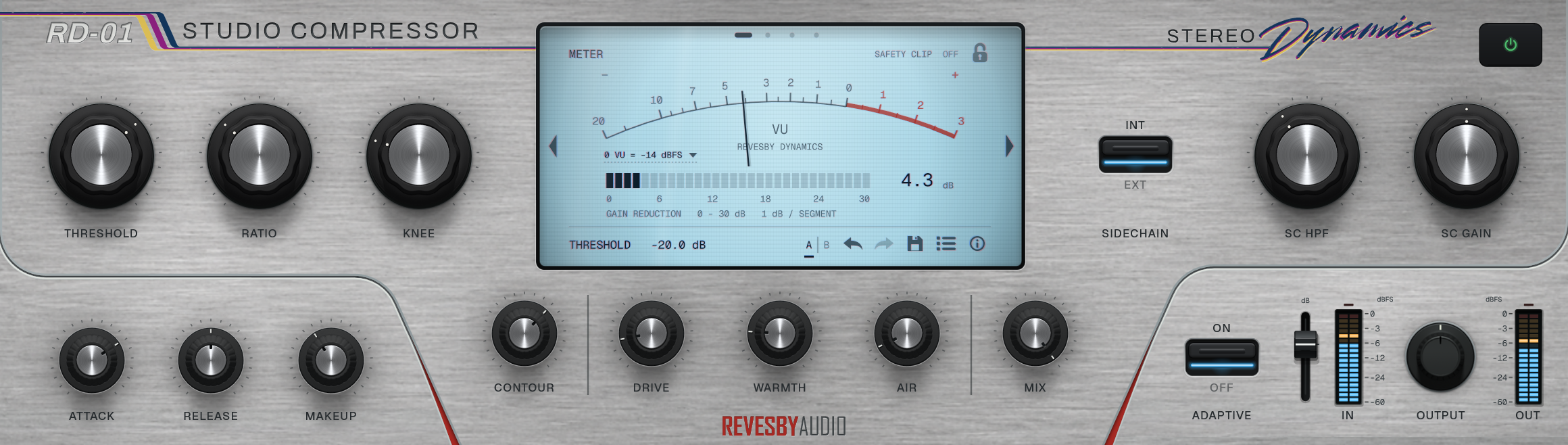
Panel layout
The panel has three areas.
- Left: the compression controls. Threshold, Ratio and Knee in the top row; Attack, Release and Makeup below them.
- Centre: the screen. Below it, the lower row reads CONTOUR | DRIVE WARMTH AIR | MIX.
- Right: the sidechain section above: the SIDECHAIN INT/EXT switch just right of the screen, then SC HPF and SC Gain. Below it, from left to right: the ADAPTIVE switch, the Input trim fader, the IN meter, the OUTPUT knob and the OUT meter. The power button is at the top right.
Working with the controls
| Action | Result |
|---|---|
| Drag a knob up or down | Adjusts the control. |
| Shift-drag | Fine adjustment. Also works on the Input trim fader and the screen's LINK setting. |
| Double-click a knob | Returns it to its default. Double-click the Input trim fader to return it to 0 dB. |
| Right-click a knob or the Input trim fader | Opens a field on the screen to type a value. |
| Double-click the value readout | Types a value for the control the readout is showing. |
| Hover over a knob | The readout shows its value. |
| Hover over any control or display | Shows a tooltip. |
Typed values accept a number with or without the control's unit, for example -18, -18 dB or 4:1. A comma works as the decimal point. SC HPF also accepts Off. Contour accepts Neutral, or Tight or Smooth followed by an amount, for example Smooth 40. If an entry cannot be read, the readout shows INVALID ENTRY for a moment and the control keeps its value.
Every control except Sidechain Listen can be automated from the host, and automation lanes show the same value text as the panel. All settings are saved with the session.
Power (bypass)
The power button at the top right switches processing on and off. It is green while processing and grey when bypassed, and it follows the host's Bypass parameter. Bypass crossfades over 5 ms and stays aligned with the 32-sample latency, so switching is click-free and the bypassed signal is the original input, delayed only to match the latency.
The screen
The screen has four main pages, METER, DYNAMICS, SIDECHAIN and CHARACTER, plus the Presets, Save and About pages.
- Page marks and arrows: the four marks at the top of the screen select a page directly. The arrows at either side step through the four main pages.
- Page following: when you adjust a knob, the screen changes to the page that shows its effect. Threshold, Ratio, Attack, Release, Knee, Makeup, Contour and the ADAPTIVE switch go to Dynamics. SC HPF, SC Gain and the SIDECHAIN switch go to Sidechain. Drive, Warmth and Air go to Character. Output, Mix and Input trim go to Meter.
- Lock: the padlock at the top right of the screen keeps the current page in place while you adjust controls.
- Value readout: the bottom left of the screen shows the control you last adjusted, or a short message such as PRESET or SAVED.
- Bottom-right icons: A/B, Undo, Redo, Save, Presets and About.
Host automation, Undo and Redo do not trigger automatic page following, and neither does switching A/B. In the preset browser, a single click on a preset loads it and keeps the browser open, for auditioning; a double-click loads it and opens the Dynamics page, even when the screen is locked. Opening a preset file also opens the Dynamics page. The previous and next arrows in the browser's title row load the adjacent preset and keep the browser open. The page and the lock are saved with the session, and recalling a session restores them.
Meter page
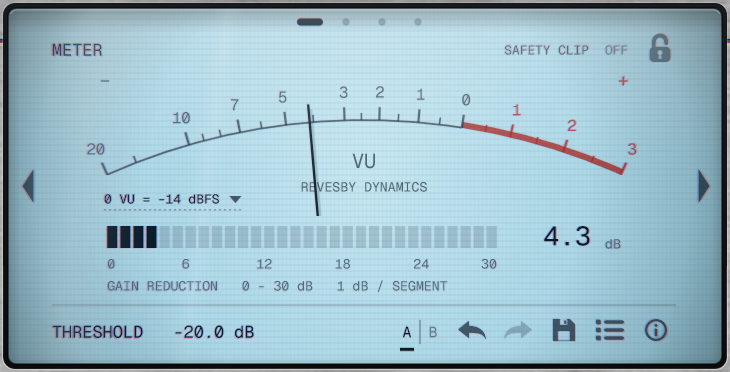
- VU meter: the output level as true RMS with VU ballistics. 0 VU corresponds to −18 dBFS RMS by default. Click the 0 VU = setting at the lower left of the meter face to choose −18, −14, −10 or −8 dBFS. This changes the meter's reference, not the audio level. The setting is saved with the session.
- Gain-reduction bar: 30 segments of 1 dB, with a numeric readout at its right-hand end. The readout can exceed 30 dB. The bar shows the compressor's own gain reduction, before Makeup and before Mix. Drive, Air, Makeup and Output are not included. Below 100 % Mix, the reduction heard at the output is less than the bar shows, because dry signal is blended back in.
- SAFETY CLIP: switches the Safety Clip on or off (see Output stage).
Dynamics page
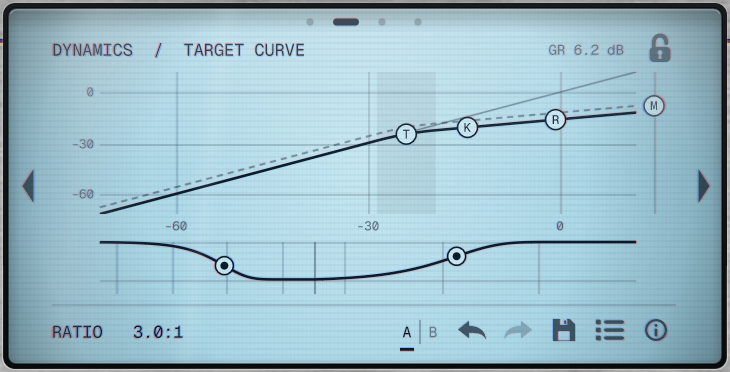
- Transfer curve: the gain computer's steady-state curve, with the 1:1 diagonal, the knee band (including Contour's effect on the knee) and a moving point for the current detector level. Drag the T handle to set Threshold, R to set Ratio and K to set the knee. When Makeup is not 0 dB, a dashed copy of the curve shows the makeup lift, with an M handle on the right-hand edge.
- Envelope strip: the gain-reduction response to a burst 18 dB over Threshold: attack on a logarithmic time axis, then release from the end of the burst. Drag the dots sideways to set Attack and Release. The times drawn include Contour's effect.
- GR: the current gain reduction is printed at the top right.
Each handle drag is one undo step. Values appear in the readout while you drag.
Sidechain page
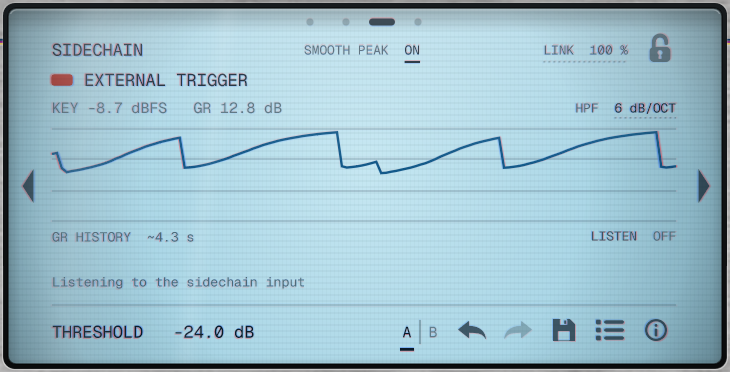
- Trigger lamp: lights while the key level is above Threshold, blue for INT and red for EXT. It stays off if EXT is selected and no key is routed.
- Routing label: INTERNAL DETECTOR, EXTERNAL TRIGGER, or EXTERNAL TRIGGER NOT ROUTED.
- KEY and GR readouts: the key level in dBFS (after SC HPF and SC Gain, before Contour's RMS blend and Threshold), and the gain reduction in dB. KEY shows
--when there is no key. - HPF 6 dB/OCT: click to switch the SC HPF slope between 6 and 12 dB/octave.
- GR history: a rolling graph of the last 4.3 seconds of gain reduction.
- LISTEN: Sidechain Listen (see Sidechain Listen).
- SMOOTH PEAK and LINK: detector settings in the page's title row (see Sidechain and detector).
- Guidance line: a short routing hint along the bottom.
Character page
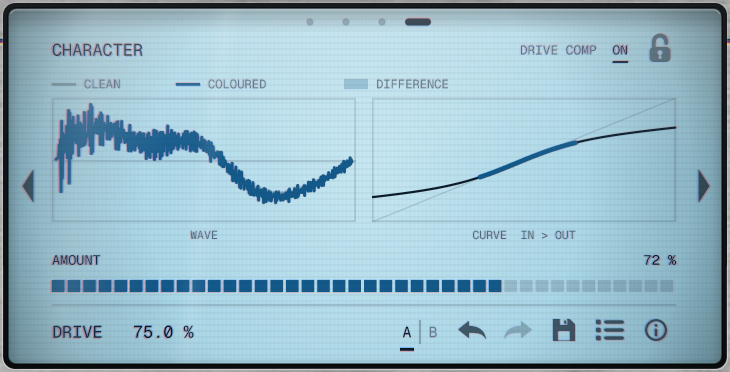
- Oscilloscope: the clean signal (grey) with the coloured signal (blue) over it, shaded where they differ.
- Curve: the Drive and Warmth transfer curve, with the range the signal is using marked.
- AMOUNT: the change relative to the clean signal, including level changes, on a scale from 0 % at −60 dB to 100 % at 0 dB. It is a visual guide, not a THD measurement. The readout shows BYPASSED, NO SIGNAL or CLEAN when there is nothing to measure.
- DRIVE COMP: switches Drive Comp on or off (see Character).
IN and OUT meters
The IN meters show the peak level after Input trim. The OUT meters show the actual output peak level. Both read in dBFS, from −60 to 0 dBFS. Amber begins at −6 dBFS and red at −1 dBFS, and a clip indication lights at or above 0 dBFS. These are sample-peak meters, not true-peak or loudness meters.
Presets
Click the Presets icon to open the browser. It lists the FACTORY folders first, then your USER folders. Open file... at the end loads a preset file from anywhere on your computer.
- A single click on a preset loads it and keeps the browser open, so you can audition presets in turn. A double-click loads it and returns to the Dynamics page.
- The arrows in the Presets title row load the previous or next preset and keep the browser open, for auditioning.
- The title shows the current preset's name, with
*once you have changed it. - If a preset contained values outside a control's range, they are brought into range and the readout adds (LIMITED).
Presets store the sound: every parameter except Bypass and the Safety Clip. Loading a preset never switches processing off and never changes the Safety Clip.
Saving presets
Click the Save icon. If the current preset is one of your own, a menu offers to save over it or to Save As. Otherwise the Save page opens:
- NAME: the preset name.
- FOLDER: User (top level), a folder named after any factory folder, any of your existing folders, or New folder..., which adds a field for the new folder's name.
- SAVE: saves the preset. If a preset with that name already exists in the folder, the button reads REPLACE and asks you to save again to confirm.
- CANCEL: returns to the browser.
User presets are saved as .rd01preset files in the user preset folder (see Uninstalling). Subfolders appear as folders in the browser.
A/B comparison
The A/B button holds two complete sets of settings. Click it to switch between A and B. Right-click it to copy the current side to the other.
Undo and redo
Undo and Redo step through your own edits: each knob or handle drag, typed value, switch, preset load or A/B switch is one step. Host automation never enters the history, so Undo never reverts automation. Edits made in a host's generic parameter window are covered by the host's own undo. Recalling a session clears the undo history.
About page
About shows the product name, the line "Revesby Dynamics / Version 1.0.0" and the LICENCE block, with a status line and a detail line.
- WINDOW SIZE, at the top right, chooses the interface size (see Window size).
- MANUAL, at the bottom left, opens this manual on revesbyaudio.com.
- NOTICES opens the third-party licence notices at revesbyaudio.com/notices.
- SUPPORT opens revesbyaudio.com/support. You can also email support@revesbyaudio.com.
- BUY (demo only) and IMPORT are at the bottom right.
Window size
Choose the window size with WINDOW SIZE at the top right of the About page: 75, 100, 125, 150 or 200 %. You can also right-click an empty area of the panel (not a control) to open the same menu. The size is saved with the session, and new instances open at the size you chose last on that computer.
Controls reference
Ranges and defaults below are for a new instance. Sessions made with earlier versions explains how sessions made with earlier versions reopen.
Compression
| Control | Range | Default | What it does |
|---|---|---|---|
| Threshold | −60 to 0 dB | 0 dB | Sets where compression begins. Lower it to increase gain reduction. |
| Ratio | 1:1 to 20:1 | 4:1 | Sets compression strength above Threshold. Higher ratios compress harder; 1:1 applies none, at any Knee setting. |
| Knee | 0 to 24 dB | 6 dB | Softens compression around Threshold. The knee is centred on Threshold, so higher values start compressing earlier and make the transition more gradual. 0 dB is a hard knee. |
| Attack | 0.1 to 100 ms | 10 ms | Sets how quickly gain reduction responds. Slower settings let more of the initial transient through. Contour changes the effective time. |
| Release | 10 to 2000 ms | 100 ms | Sets how quickly gain reduction recovers. Longer settings hold compression for longer. Contour and Adaptive Recovery change the effective time. |
| Makeup | −12 to +24 dB | 0 dB | Adjusts level after compression and before Drive. Because it comes before Drive, Makeup also sets how hard Drive is pushed. |
Because the knee is centred on Threshold, gain reduction starts half the knee width below it. With the defaults (Threshold 0 dB, Knee 6 dB), peaks above −3 dBFS are reduced slightly, so a new instance is not completely neutral on very hot material. For no reduction below 0 dBFS at 0 dB Threshold, set Knee to 0 dB or Ratio to 1:1.
Attack and Release describe the response to a step in gain reduction: after one attack time, gain reduction has made 63 % of the change; after one release time, 37 % of it remains.
When Contour is away from Neutral, the readout for Attack and Release shows the time you set and the effective time Contour makes of it, for example ATTACK 10.0 ms > 14.1 ms.
Contour and recovery
| Control | Range | Default | What it does |
|---|---|---|---|
| Contour | Tight 100 % to Smooth 100 % | Neutral | Adjusts timing, knee and detector response together: left for tighter, faster compression, right for smoother, slower compression. Contour and Drive explained gives the detail. |
| ADAPTIVE (Adaptive Recovery) | On / Off | Off | Lengthens the release after sustained compression, up to 3 times, and never beyond 6 seconds. Short events recover at the normal rate. Works at any Contour setting. Active only with the INT sidechain source. |
Character
| Control | Range | Default | What it does |
|---|---|---|---|
| Drive | 0 to 100 % | 0 % | Adds saturation after compression and Makeup, rounding peaks and adding harmonics. Processed with 4× oversampling. At 0 % the stage is bypassed and the signal is unchanged. |
| Warmth | 0 to 100 % | 0 % | Moves Drive towards asymmetric saturation, which adds even as well as odd harmonics. Requires Drive above 0 %. |
| Air | 0 to 100 % | 0 % | Adds a broad high-frequency lift after Drive. At 100 % the shelf reaches about +4.5 dB at 10 kHz and approaches +9 dB at the highest frequencies; the lower spectrum is effectively unchanged. Air can raise output peaks. |
| DRIVE COMP (Character page) | On / Off | On | Reduces the level change caused by Drive, helping you compare settings at roughly equal loudness. Matched for material peaking around −6 dBFS; louder material still comes down slightly, and Drive Comp adds a subtle boost to quieter material. Use Output for final level matching. |
Output stage
| Control | Range | Default | What it does |
|---|---|---|---|
| Mix | 0 to 100 % | 100 % | Blends the dry signal with the compressed and coloured signal. The dry signal is taken after Input trim and latency-aligned, so partial settings blend in phase. 0 % passes the dry signal only (with Input trim and Output still applied). |
| OUTPUT | −24 to +12 dB | 0 dB | Adjusts level after Mix and before the Safety Clip. It does not change the detector, Drive or the gain-reduction reading. Use it to level-match. |
| Input trim | −24 to +12 dB | 0 dB | Sets the level into the unit. Both the processed signal and the dry signal used by Mix come after it, so Mix at 0 % still includes Input trim. It does not change the level of an external key, or the bypassed signal. |
| SAFETY CLIP (Meter page) | On / Off | Off | A soft clip after Mix and Output that keeps the processed output at or below 0 dBFS. Levels below −1 dBFS are unchanged. |
The Safety Clip is an overload catch, not a limiter. It works on sample peaks, not true peaks, so intersample peaks can still exceed 0 dBFS after conversion. With the Safety Clip off, RD-01 never clips or limits its output: levels above 0 dBFS pass through as they are, and the OUT meter shows them. Reduce Output if you need headroom.
Sidechain and detector
| Control | Range | Default | What it does |
|---|---|---|---|
| SIDECHAIN switch | INT / EXT | INT | INT listens to this track. EXT listens to the signal routed to RD-01's sidechain input by your host. |
| SC HPF | Off, or up to 400 Hz | Off | High-pass filter in the detector only: reduces the detector's bass sensitivity without filtering the audio. −3 dB at the set frequency. |
| SC HPF slope (Sidechain page) | 6 dB/oct or 12 dB/oct | 6 dB/oct | 6 dB per octave is gentle. 12 dB per octave keeps kick out of the detector with less effect on the low mids. Has no effect while SC HPF is Off. |
| SC Gain | −24 to +24 dB | 0 dB | Adjusts the level reaching the detector, from either INT or EXT. Increase it to trigger more compression. It does not change the program level. |
| LINK (Stereo Link, Sidechain page) | 0 to 100 % | 100 % | At 100 %, both channels receive the same gain reduction, set by the louder channel. Lower values let each channel respond more to its own level. External keys always stay linked. Double-click to return to 100 %. |
| SMOOTH PEAK (Sidechain page) | On / Off | On | The detector follows each cycle's peak instead of every sample: it holds each new peak for 10 ms, then lets it decay. Gain reduction then matches the curve, and bass does not ripple at fast settings. Release starts about 10 ms later. Off is the original per-sample detector. |
| LISTEN (Sidechain Listen, Sidechain page) | On / Off | Off | Plays the detector key instead of the output (see Sidechain Listen). A monitoring switch, not a saved setting. |
With Smooth Peak on, Attack reaches 63 % of a gain-reduction step at the time you set. With it off, the detector follows every sample, so on steady tones the envelope partly releases between half-cycles: gain reduction settles slightly below the curve, and low frequencies can modulate at fast settings. Switch Smooth Peak off if you want that behaviour.
Under Smooth Contour, the detector's RMS component is measured on each channel separately and then linked in the same way as the peaks, so stereo material is judged on each channel's own level.
Sessions made with earlier versions
Sessions and presets made with earlier versions of RD-01 reopen sounding as they did. Settings that did not exist when they were saved take the value that matches the earlier behaviour, not the new-instance default:
| Setting | New instance | Session or preset from an earlier version |
|---|---|---|
| Smooth Peak | On | Off (the original detector) |
| Drive Comp | On | Off |
| SC HPF slope | 6 dB/oct | 6 dB/oct |
| Safety Clip | Off | Off |
You can switch these settings on in an older session at any time. The factory presets use Smooth Peak and Drive Comp on.
Signal flow
RD-01 processes audio in this order:
- Input trim, which sets the level into the unit. The IN meters read here.
- Detector (sets the gain reduction; it does not pass audio):
- key: the trimmed track (INT) or the external sidechain input (EXT);
- SC HPF, at 6 or 12 dB/octave;
- SC Gain;
- Stereo Link;
- Smooth Peak;
- Contour's peak-to-RMS blend;
- the static curve (Threshold, Ratio, Knee);
- the attack and release envelope (Attack, Release, Contour, Adaptive Recovery).
- Gain reduction applied to the trimmed track. The gain-reduction bar reads here.
- Makeup.
- Drive and Warmth, 4× oversampled, followed by Drive Comp.
- Air.
- Mix, with the latency-aligned dry signal taken after Input trim.
- Output.
- Safety Clip, if on.
- Bypass, a 5 ms crossfade to the latency-aligned original input. The OUT meters read the final output.
Input trim sets the level into the unit. Both the processed signal and the dry signal used by Mix come after it, so Mix at 0 % still includes Input trim. The dry signal is delayed by 32 samples to match the processed path. Bypass passes the original, untrimmed input, delayed by the same 32 samples. Input trim does not change the level of an external key.
Sidechain Listen, when on, replaces the output with the detector key after step 2's SC HPF and SC Gain, passed through the Safety Clip if that is on.
Input ─► Input trim ─┬──┬─► × gain reduction ─► Makeup ─► Drive/Warmth (4×) ─► Drive Comp ─► Air ─┐
  │                  │  │           ▲                                                             │
  │                  │  └─► INT ─┐  └── envelope ◄─ curve ◄─ Contour ◄─ Smooth Peak ◄─ Link ◄─┐   │
  │                  │           ├─► SC HPF ─► SC Gain ───────────────────────────────────────┘   │
  │                  │ EXT key ──┘                                                                │
  │                  │                                                                            ▼
  │                  └─► 32-sample dry delay ──────────────────────────────────────────────────► Mix ─► Output ─► Safety Clip ─► Bypass ─► Out
  │                                                                                                                                ▲
  └─► 32-sample delay (untrimmed input) ───────────────────────────────────────────────────────────────────────────────────────────┘
Contour and Drive explained
Contour
Contour is a macro control. Attack, Release and Knee keep the values you set; Contour scales them, and changes what the detector listens to.
| Tight (left) | Neutral | Smooth (right) | |
|---|---|---|---|
| Effective attack | down to 0.5 × | as set | up to 2 × |
| Effective release | down to 0.4 × | as set | up to 2.5 × |
| Knee | narrower, down to half | as set | wider, by up to 6 dB (30 dB at most) |
| Detector | peak | peak | blends from peak towards RMS (a 25 ms average) |
The scaling is continuous across the range. For example, at Smooth 50 % an Attack of 10 ms becomes 14.1 ms, which the readout shows as ATTACK 10.0 ms > 14.1 ms. The Dynamics page draws the effective knee and times.
Moving Contour towards Smooth also lowers compression depth a little. A steady tone reads about 3 dB lower through an RMS detector than through a peak detector, so at the same Threshold, Smooth settings reduce slightly less. Lower Threshold a little if you want the same depth.
Tight settings suit transient material where you want fast, firm control. Smooth settings suit levelling and bus work, where a slower, rounder response is less audible. Neutral reproduces a conventional peak compressor with the times exactly as set.
Drive
Drive is a saturation stage after the compressor and Makeup. It rounds peaks and adds harmonics. It is a saturation texture, not a limiter and not a model of a particular circuit.
- Response: the lower half of the knob is subtle; the effect builds through the upper half. Quiet signals pass at close to their original level, and loud signals are shaped most.
- Harmonics: with Warmth at 0 %, Drive is symmetric and adds odd harmonics. Warmth blends in an asymmetric curve, which adds even harmonics as well.
- Oversampling: only the added harmonic content is processed at 4× the sample rate; the clean signal takes a direct, latency-aligned path. This keeps aliasing low, but no oversampling scheme is alias-free at every frequency and Drive setting.
- Makeup and Output: Makeup sits before Drive, so raising Makeup pushes Drive harder and changes the colour as well as the level. Output comes after everything, so it changes level without changing the colour. To compare Drive settings fairly, level-match with Output, not Makeup.
- Level: saturation lowers the level of loud material. Without compensation, a full-scale sine loses about 10 dB at Drive 100 %, and a sine at −6 dBFS about 5 dB. Drive Comp (on by default) reduces the level change caused by Drive, helping you compare settings at roughly equal loudness. It adds a fixed make-up for each Drive amount, matched for material peaking around −6 dBFS. Louder material still comes down slightly, and Drive Comp adds a subtle boost to quieter material. Use Output for final level matching.
Air
Air is a broad high shelf, blended in by the Air amount. It follows Drive, so its brightness does not reach the detector and is not saturated. It is not a de-esser; audition bright or sibilant material before choosing an amount. Air adds peak level, so check output headroom.
Sidechain
Internal and external keys
- INT: the detector listens to the track RD-01 is on, after Input trim.
- EXT: the detector listens to the signal your host routes to RD-01's sidechain input. That signal controls gain reduction only; it never reaches the output. Input trim does not change its level; use SC Gain to adjust the detector's sensitivity to it.
If EXT is selected and no key is routed, RD-01 does not compress: it does not fall back to the internal signal. The Sidechain page reads EXTERNAL TRIGGER NOT ROUTED and the trigger lamp stays off. Any gain reduction already in progress releases normally.
A stereo key is detected on its louder channel, so out-of-phase material cannot cancel detection. External keys are always linked: both channels of the track receive the same gain reduction.
Adaptive Recovery is inactive with an external key, so external ducking keeps predictable timing.
SC HPF and slope
SC HPF reduces the detector's response to low frequencies, without filtering the audio you hear. Raise it when bass or kick drives the compressor more than you want, for example on a mix bus or a full-range vocal. Keep it Off when the low end should trigger compression, as when ducking under a kick.
The HPF setting on the Sidechain page sets the slope. 6 dB/octave is gentle and also reduces some low-mid sensitivity at high cutoffs. 12 dB/octave removes more of the lowest frequencies with less effect on the low mids.
Sidechain Listen
LISTEN on the Sidechain page lets you hear what the detector hears: the key, after SC HPF and SC Gain, replaces the plugin's output. With INT, each channel plays its own filtered signal; with EXT, the routed key plays on both channels. Use it to set SC HPF by ear.
Sidechain Listen is for monitoring only:
- it is not saved with the session or presets, and cannot be automated;
- it switches off when you close the plugin window;
- bypass (the power button or the host's bypass) overrides it;
- the Safety Clip applies to it when the clip is on.
Switch it off before bouncing or exporting.
Routing an external key
Each host routes sidechain signals differently; see your host's documentation for the exact steps. In general:
- Insert RD-01 on the track you want to reduce, for example a bass that should duck under the kick, or music under a voice-over.
- Set the SIDECHAIN switch to EXT.
- In your host, enable RD-01's sidechain input and route the trigger track to it. Routing is set in the host, not in the plugin.
- Play the session. On the Sidechain page, the trigger lamp should flash red with each hit, the KEY reading should move, and GR should show reduction.
- Set Threshold for the depth of ducking, Release for how quickly the level returns, and Attack for how quickly the duck begins. Use SC Gain if the trigger is quiet.
The two factory presets in the Sidechain folder are starting points for ducking under a kick. If the host only offers the sidechain input on a fresh instance, see After installing: rescan in your host.
Factory presets
RD-01 includes 26 factory presets in nine folders. They load from the Presets page and appear before your own presets.
| Folder | Presets |
|---|---|
| Vocals | Lead Level, Rap Upfront, Smooth Ballad, Tight Pop |
| Drums | Bus Glue, Kick Control, Overheads Gentle, Room Crush, Snare Snap |
| Bass | Even Bass, Tight Pick, Warm DI |
| Guitars & Keys | Acoustic Even, Electric Body, Piano Gentle |
| Mix Bus | Dense Modern, Gentle Glue, Stereo Width-Safe |
| Parallel | Bass Weight, NY Drums, Vocal Lift |
| Sidechain | Kick Duck Fast, Kick Duck Smooth |
| Character | Air & Drive Showcase, Warm Tape-ish |
| Utility | Init |
- Parallel presets compress hard and blend the result with the dry signal using Mix (35–40 %).
- Sidechain presets are set to EXT and need a key routed by your host (see Sidechain).
- Init returns every sound setting to its new-instance default.
All factory presets use Smooth Peak and Drive Comp on. Where Drive Comp's make-up is significant, the preset's Output is lowered slightly to compensate. Threshold depends on the level of your material, so adjust it first if a preset compresses too much or too little.
Loading a preset does not change Bypass or the Safety Clip.
Tips
These are starting points, drawn from the factory presets. Adjust by ear for the material.
- Set Threshold for the signal. Most factory presets set Threshold between −14 and −28 dB. If a preset compresses too much or too little, move Threshold before anything else.
- Level-match with Output. When comparing settings, or RD-01 against bypass, match the loudness with Output. Makeup changes the Drive colour as well as the level.
- Keep bass out of a bus detector. The mix-bus, overhead and vocal presets use SC HPF between 60 and 120 Hz. Turn on LISTEN to hear the result, then switch it off. Try the 12 dB/oct slope if the low mids are being lost from the key.
- Gentle bus glue. Gentle Glue uses a low ratio (1.5:1), slow attack and release (30 ms and 300 ms), a wide knee, Smooth Contour and Adaptive Recovery. This is a useful starting point for buses and mixes.
- Stereo Link on a mix. Stereo Width-Safe lowers Link to 60 %, so each side responds more to its own level rather than both following the louder side. At 100 %, both sides always receive the same gain reduction.
- Parallel compression. Heavy compression (Threshold −34 to −40 dB, Ratio 6:1 to 10:1, fast attack) blended at 35–40 % Mix adds density while keeping the dry transients. The gain-reduction bar shows the compressed path, so it reads more reduction than you hear.
- Ducking. Kick Duck Fast (1 ms attack, 120 ms release, Tight Contour) gives a quick, clear duck. Kick Duck Smooth (5 ms attack, 300 ms release, Smooth Contour) gives a gentler, longer one.
- Adaptive Recovery for sustained compression. The factory presets use it on material that is compressed continuously: Lead Level, Smooth Ballad, Even Bass, Piano Gentle, Bus Glue and Gentle Glue. It slows recovery only after sustained gain reduction; short events recover at the set release.
- Safety Clip as a guard. Switch it on when heavy Makeup, Drive or Air could push the output over 0 dBFS. It leaves levels below −1 dBFS unchanged, but it is not a substitute for a limiter at the end of the chain.
Troubleshooting
RD-01 does not appear in my host
- Check that the plugin is in the install location (see Installation).
- Rescan plugins in your host, then restart it.
- Windows: make sure the host scans
C:\Program Files\Common Files\VST3. - macOS (AU): restart the host. In Logic Pro, open the Plug-in Manager and rescan RD-01 if it is listed as failed or unavailable.
- Check that your host is 64-bit and loads VST3 or AU plugins. RD-01 is not available as AAX or CLAP.
The installer stops, saying RD-01 is open
Setup will not replace a plugin that is loaded in an audio application. Close all audio applications and run the installer again. Nothing is changed when setup stops.
macOS will not open the installer
Download the disk image again from revesbyaudio.com and run the installer from it. If macOS still reports that it cannot verify the installer, contact support.
The output drops out every 45 seconds
RD-01 is in demo mode. Import your licence (see Importing your licence). If the DEMO badge still shows after importing, open About and read the message there.
Licence messages
| Message | Meaning |
|---|---|
| That file could not be read. Choose the .license file from your order email. | The file is empty or unreadable. |
| That is not a Revesby licence file. Choose the .license file from your order email. | The file is not a licence. |
| This licence file has been changed or damaged. Download it again from your order email. | The file has been altered, so its signature no longer matches. Use the original attachment. |
| This licence is for RD-02 Transient Shaper, not RD-01 Studio Compressor. | The licence covers another product. Nothing is saved. |
| That is a free-collection registration. Your RD-01 Studio Compressor licence is in your order email. | The file registers Revesby's free plugins; it is not an RD-01 licence. |
| This licence expired on (date). | A time-limited licence has passed its end date. |
| This licence was cancelled after a refund or a payment dispute. If that's a mistake, email support@revesbyaudio.com. | The daily check found the order refunded or disputed. |
| Could not create the licence folder (path). / Could not save the licence in (path). | The licence folder could not be written. Check the folder's permissions, or copy the file there yourself. |
External sidechain does not compress
- The Sidechain page reads EXTERNAL TRIGGER NOT ROUTED: enable RD-01's sidechain input in your host and route the trigger to it, or set the switch to INT.
- The lamp does not flash: the key may be below Threshold. Lower Threshold or raise SC Gain.
- An instance that existed before installation may not offer a sidechain input. Rescan and insert a fresh instance.
The output is silent or sounds like the key
Sidechain Listen is on. Switch LISTEN off on the Sidechain page, or close and reopen the plugin window.
The level drops when I raise Drive
Saturation lowers the level of loud material. Check that DRIVE COMP is on (Character page); sessions made with earlier versions reopen with it off. Then level-match with Output.
The output goes over 0 dBFS
RD-01 does not clip or limit unless the Safety Clip is on. Makeup, Drive (with Drive Comp) and Air can all raise the level. Reduce Output, or switch on SAFETY CLIP on the Meter page.
A preset loads with (LIMITED)
One or more values in the file were outside a control's range and have been brought into range. The rest of the preset loaded normally.
Support
Email support@revesbyaudio.com or visit revesbyaudio.com/support (SUPPORT on the About page opens it). Include your operating system, host and version, plugin format (VST3 or AU), and RD-01's version from the About page.
Credits and third-party notices
RD-01 is built with the JUCE framework, used under a commercial licence, and includes these third-party components under their own licences:
- Geist Medium and Geist Mono typefaces (SIL Open Font License 1.1): screen and panel text
- Archivo Bold typeface (SIL Open Font License 1.1): panel lettering
- Steinberg VST3 SDK: the VST3 plugin
- Apple AudioUnitSDK: the macOS Audio Unit
- SheenBidi, HarfBuzz, zlib, libpng and the Independent JPEG Group's JPEG library, via JUCE
- FLAC and Ogg Vorbis, included by JUCE's audio formats module
The full notices and licence texts are in the file Third-Party Notices.txt: on Windows in C:\Program Files\Revesby Audio\Revesby Dynamics, and on macOS in the disk image beside the installer. They are also published at revesbyaudio.com/notices; NOTICES on the About page opens that page.
The End User Licence Agreement is published at revesbyaudio.com/eula. It is shown during installation and supplied as Licence Agreement.rtf: on Windows in the same folder as the notices, and on macOS in the disk image.
Designed and made by Revesby Audio in Sydney, Australia.